
Rules Tab
This tab allows you to select the meta-data fields and to define the exclusion criteria. Teekesselchen uses the selection to determine duplicates. Sometimes this plug-in marks photos as duplicates which are none, e.g. photos from a continuous shooting with an equal timestamp. In this case you should define a keyword for photos which Teekesselchen has to ignore. Add this keyword to the specific photos and remove the keyword for duplicates. These photos will never be marked as duplicates again.
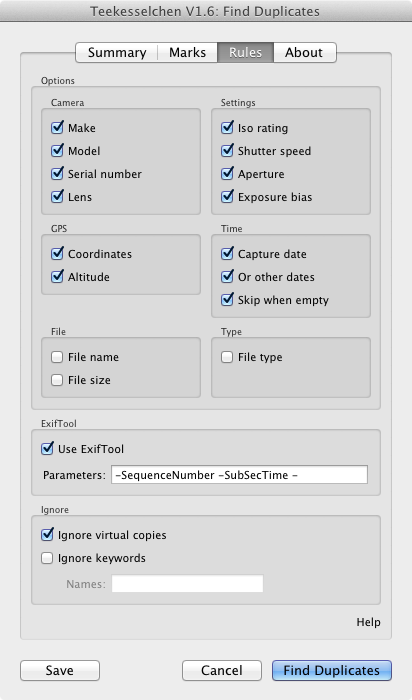
The Rules tab
Options
This section offers the selection of meta-data about the camera, settings during the image acquisition, global positioning system (GPS) and the capture time. Teekesselchen takes the selected meta-data fields and marks photos with equal values as duplicates. Usually it is a good idea to select all fields but you can reduce the processing time by using less meta-data fields. An empty meta-data field will always be ignored.
You can now chose the file name, size and type as criterion. Usually it is not a good idea to use this, but in some special cases it can be useful. The recommendation is: try to avoid name and size but use it when necessary.
The capture date can now be deactivated (this was not possible in earlier releases).
ExifTool
ExifTool is a programm written by Phil Harvey which, extracts Exif metadata from photos. Teekesselchen can use this application to get more information, e.g. the sequence number or the sub-second. This can be very helpful for continuous shootings. Lightroom supports only seconds as smallest unit leading to unmeant duplicates if you take more than one photo per second.
If you turn on this option then Teekesslechen uses the ExifTool only for potential duplicates. The execution is pretty expensive (in terms of execution time) and can slow down the duplicate finding process.
Another challenge are the different metadata fields. Nikon's raw format supports the sub-second but not the sequence number. Panasonic's format doesn't know sub-seconds but provides the sequence number. Thus, it is not guaranteed that ExifTool can help you with your specific format.
Please take a look at the ExifTool documentation and share any useful tags with us. You can use the commenting function at the bottom for this.
Ignore
Not all photos should be taken into account during the search for duplicates. In order to make the selection of photos still comfortable you can define criteria when photos should be ignored. The first option are the so called virtual copies. They are referencing a master photo and have usually the same meta-data. Thus, virtual copies are usually detected as duplicates. Select this check-box to avoid the inclusion of virtual copies.
You can also mark photos with a keyword to exclude them from the search for duplicates. The field "Names" is a comma-separated list of keywords. All photos with one or more of the passed keywords will be ignored.
Go to old version 1.5
Was wondering, I have files in multiple folder locations. I select them all and do a scan for duplicate file names (I'll compare content) and for some reason it will not match duplicates. Is the naming process case sensitive?
Hi Jake,
could you please describe the problem a little more in detail please. Does the plugin show images that do not like duplicates? Or are you missing some images? Please remember that the plug-in does not take a look at the images but meta-data like the date, time, camera etc. If images from different sources or folders have equal data then they look like duplicates. Usually the plugin does not compare file names, but you can select this option in the Rules tab.
Michael
I chose for it to only compare file names and for some reason it wasn't matching them. All same case lettering but video files instead. *.MP4. I set it to compare 'this' folder to 'that' folder with all rules off except for file name. It was strange.
I manually searched for file names through Lightroom and it found them all. I compared the content myself and deleted the duplicates.
Keep in mind that it worked flawlessly for all my other photos. I set all sorts of rules and it worked great. It just seems the file name rule got hooked up on a few video files. Is that normal?
-Jake
Hi, I love the plug-in and was just wondering if there is a way to prioritise those images in a collection, or with a keyword or in a particular folder. I have 1000 images in one folder and 250 in another. The 250 are all duplicates of the thousand. I want to remove the duplicates but still be able to identify the 250. I can put the 250 in a collection or add a keyword but when I run the plug-in I need it to keep the ones in the 250 in favour of the ones in the 1000. Any help appreciated, regards
Hi,
collections or folders are not selectable at the moment. Are you using ratings? If not then it is pretty easy. Just rate the preferred ones higher than the rest and select "Prefer higher rated files" from the Marks tab.
Regards
When I want to delete the dubs (via abgelehnte fotos löschen) I get an error: you cannot erase fotos from smart collections. What can I do?
solved... You have to leave the smart collection and erase the fotos in the katalog.
Thanks for the great plugin. I'm trying to sort out duplicate files that are named the same, except for (1) or (2), etc, added at the end of the filename. For instance, filename.jpg, filename(1).jpg, filename(2).jpg. I haven't been able to figure out how to search for the (1), (2), etc, and mark those files for later deletion. Thanks...
Help with ExifTool please, the more I Google, the more confused I get.
Problem: bursts of photos taken within a 1 second slot are marked as duplicates.
Solution: tick the "Use ExifTool" box, but I can't get it to work.
I downloaded the ExifTool.exe and placed it's location in the Windows "Path" environment variable - it runs from a command prompt OK.
BUT, how does Lightroom (I use the full ver6 paid-for version), and the plugin know about it?
Is there an ExifTool plugin I should find or install?
Hi,
basic information about exiftool woul be very much appreciated, because the stupid Lightroom's limitation to one entire second ruins your super-duper piece of software !!
1/ Is exif tool included i the plugin package, or shall I download it separately? (and wich version, CLI or standalone? Where do I put it?)
2/ What are the basic arguments (-SubSecTime and so on...) for the 4-5 prominent camera makers? or at least Canon and Nikon ? the only thing we need is to analyze the "sub 1 second" shooting time .
Thanks again for your perfect and free plugin ! (plugged on a non perfect and expensive software !!)
Hi Delmouly,
I stumbled on your comment from a google search for duplicate image detection in lightroom. I assume since your comment was 2 yrs ago you have long since worked around the issue or solved it but thought I would add my thoughts for any others that stumble on the issue.
I also initially was seeing images marked as duplicates when the capture time was the same to the sec. I noticed in my case that this can happen even if burst mode was not used.
I see Michael added exiftool to extract additional metadata that can help differentiate a duplicate.
As far as your questions go. Michael packaged a version of exiftool to the lightroom plugin. You can see this if you navigate to the folder where the plugin package is installed and run it to see the version as well:
.\exiftool -ver
12.25
For me I got the above for the 1.9 version of teekesselchen plugin.
In the Rules tab of the Find Duplicates plugin feature, by default, the exiftool radio button was not enabled so I enabled it with the following default switches passed to it:
-SequenceNumber -SubSecTime -SpecialMode
When I ran with those settings it did eliminate duplicates where there was a subsec time difference.
As the exiftool doc states the above switches are exif tags. Apparently the exif tags in a photo vary by camera maker. My photos were shot with camera that did not have the above default exif tags. I had to use -filenumber which would distinguish between shots with same time.
The exiftool docs list all tags https://exiftool.org/TagNam...
I just took one of my photos and ran the following on it (I'm using windows where exiftool.exe is on my E drive) to see what tags were reported:
E:\exiftool -all photoname.jpg
Teekesselchen > Rules Tab: If "Use ExifTool" is checked and "Ignore virtual copies" is unchecked, where does Teekesselchen search for Exif tags of virtual copies? Is it searching the Exif tags of the master photo (and if this is true: of the stored master photo itself or only within the Lightroom Classic database?) or is it searching the Exif data of the virtual copy in the Lightroom Classic database?
I would like to distinguish virtual copies (from one another and/or from the master photo) by different crop widths and heights. If the use of ExifTool works for that, what tag will I have to use?
Appreciating any hint in advance.
Great plugin! But I'm having problems with ignoring images based on keywords. This seems to work only for top-level keywords, but my keywords are arranged in a hierarchy. Is there a way to exclude for instance the keyword "Pluto", which is under "Dogs"?
Also, excluded keywords are not listed on the summary tab?
Thank you.
Hello,
I just downloaded your tool, and have a question on designating which folder a "Rejected" photo should be selected.
My example: I accidentally imported the same files into a folder called "2020 Photos" and into a Subfolder called "2020 Vacation". I want to delete the ones in the folder "2020 Photos" but the tool is selecting "2020 Photos".
Suggestions?
Thanks!