
Tutorial
This tutorial shows you how you can utilize the plug-in Teekesselchen to find duplicates of photos. There are a couple of reasons why duplicates appear in your catalogs and is just a question of time until you encounter them.
Teekesselchen uses the meta-data of your photos to detect duplicates. The capture time is the essential value but only supports seconds as smallest resolution. Thus, it can happen that Teekesselchen marks two different photos as duplicates, e.g. from a continuous shooting. If this happens then you should use the ExifTool option to compare more meta-data. You can find this option on the Rules tab (go to the help page). But please keep always in mind, Teekesselchen does not delete any photos on its own!
So please start Lightroom and follow the instructions step by step. In order to see results, it is a good idea to start with a catalogue which contains duplicates.
Step 1: Select Photos
There are a couple of ways how you can determine which photos shall be checked. You can select a whole catalog, folders and collections. If you select 2 or more photos then this selection will be checked. If you select 1 or no photo then the plug-in takes all photos from the current grid view. Take a look at the following screen-shot. In this case Teekesselchen will check all 14429 photos because no photo is selected (the navigator is empty).
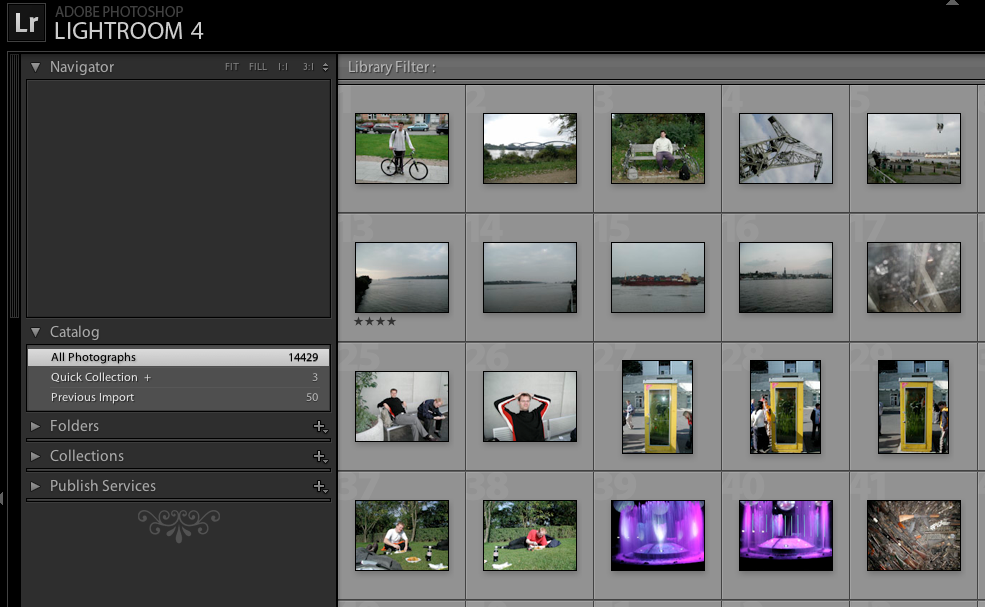
No photo is selected
In the following screen-shot Teekesselchen will only check the 4 selected photos with the numbers 21 - 24.

4 selected photos
Step 2: Open Teekesselchen
Keep the photos selected and open Teekesselchen from the menu with Library > Plug-in Extras > Find Duplicates.
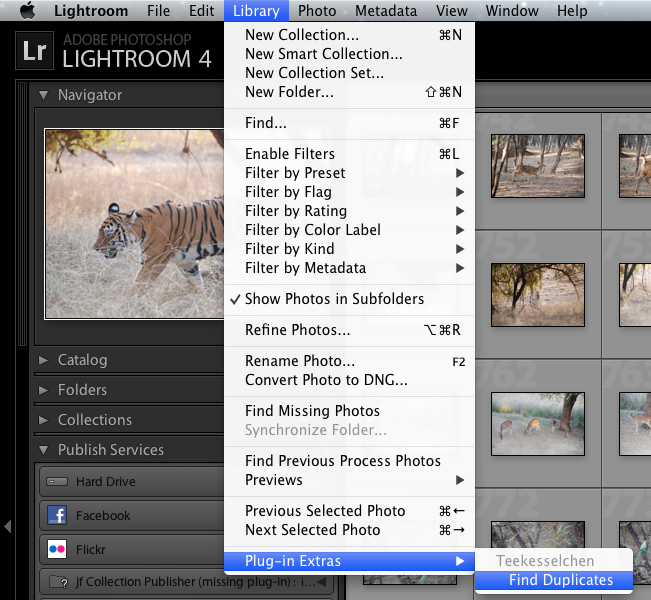
Open the plug-in
Step 3: Kick Off
The following dialog should pop up:
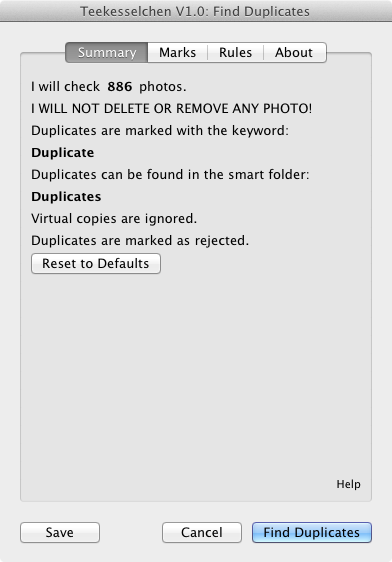
Summary tab
You see the Summary tab with all relevant informations at a glance. In this case I use the collection of my last trip to India. Teekesselchen tells me that it will check 886 photos and that duplicates are marked with the keyword Duplicate. It will also create a smart folder with the name Duplicates. This smart folder uses a keyword based rule and will contain all photos with the keyword Duplicate. Virtual copies of photos will be ignored and this is in most cases the right behavior. Duplicates will be marked with a special Lightroom flag which indicates them as rejected.
Click on the button Find Duplicates and a new progress dialog pops up.

Progress dialog
After the run a new summary dialog pops up. It informs about the number of found duplicates and the skipped items. There are usually two reasons why Teekesselchen skips a content. Either your selection criteria is the reason, e.g. when ignore virtual copies is activated, or the content itself is not proper, e.g. a video.
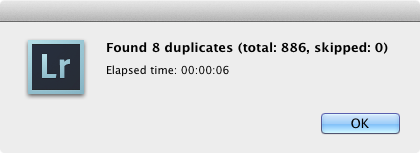
Summary dialog
Click on OK and go to the collection Duplicates. You should see a grid view with all originals and duplicates.
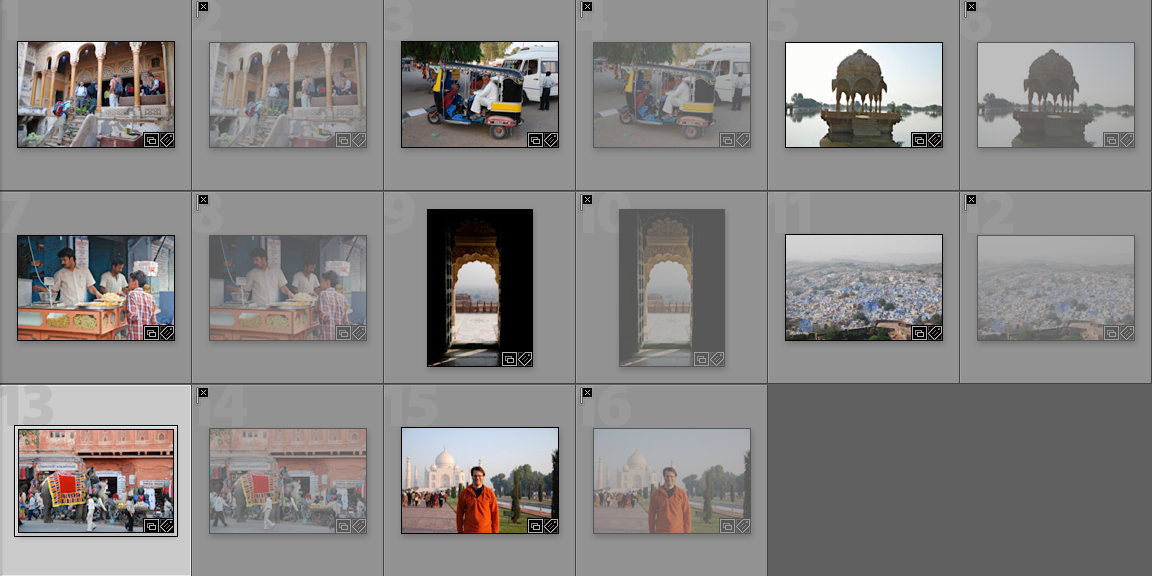
Select the collection Duplicates
All photos in this collection are marked with the keyword Duplicate but not all photos are marked as rejected. If you are fine with the selection and you want to delete the duplicates then you must go back to the catalog before you can call Photo > Delete Rejected Photos ... . Lightroom does not allow the use of this menu item in smart collections.
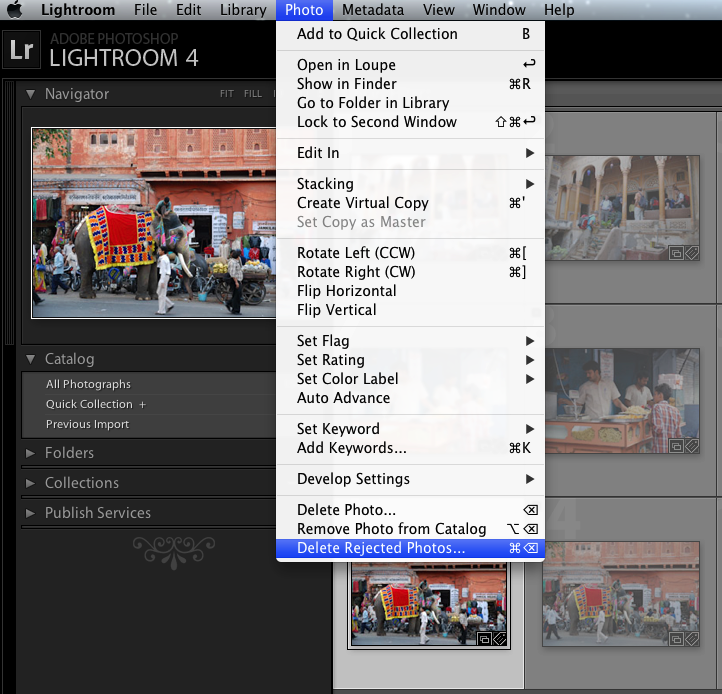
Open "Delete Rejected Photos..."
Please be aware of the fact that this delete operation will remove all photos with the deletion flag and not only the duplicates from the last run.
Improve Sorting with Labels
The order of the results in the selected smart collection for duplicates is sometimes not optimal. In order to improve the relation between the original and its duplicates you can now use labels. A label is usually associated with a color and if you use labels on your own, e.g. in your workflows, you should not use the following options. Please activate the following option on the Marks tab:
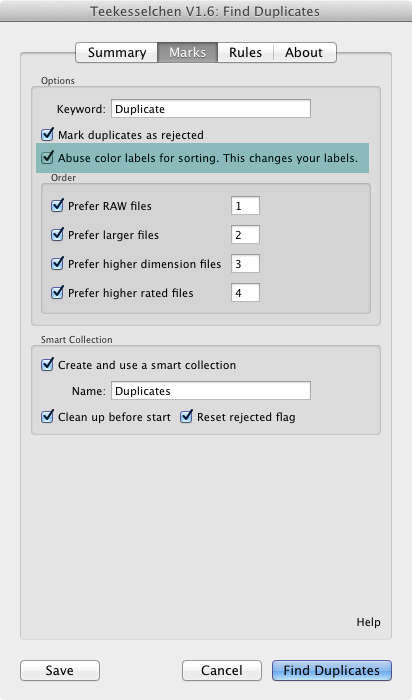
Use "Abuse color labels for sorting."
After the run should sort the result by Label Text:
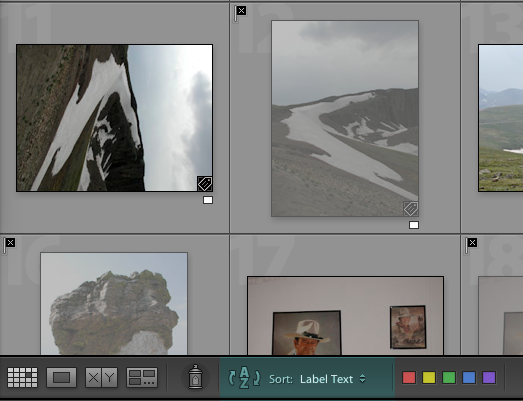
Use "Sort: Label Text"
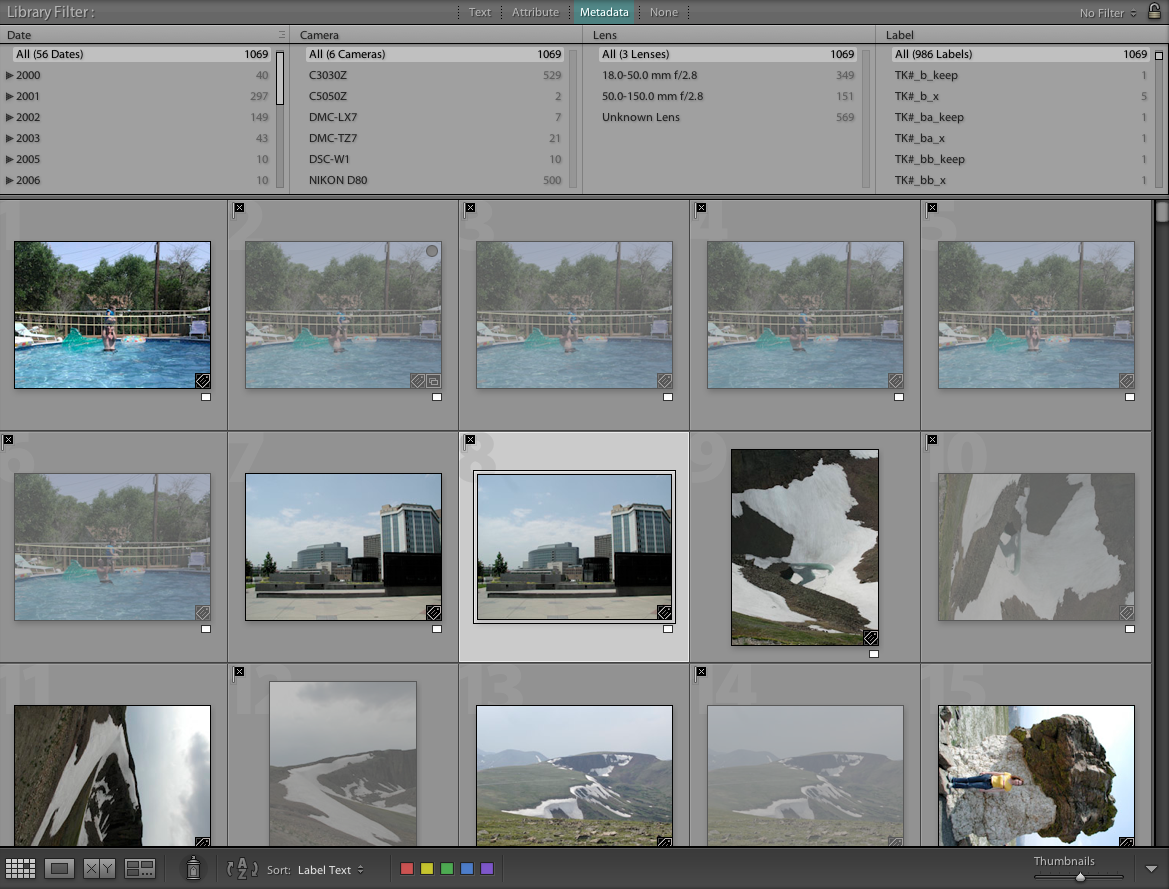
Now open the "Library Filter" at the top by selecting "Metadata":
Use "Sort: Label Text"
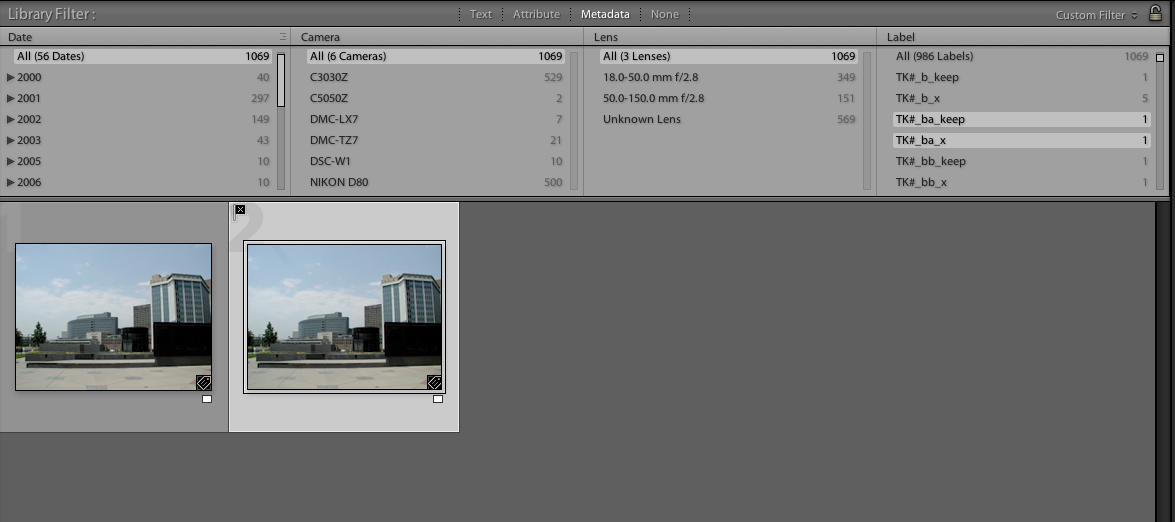
You can see a lot of generic labels, depending on the number of duplicates. The preferred original, which depends on the prefer rules on the "Marks" tab, is labeled with TK#_??_keep and all related duplicates are labeled with TK#_??_x. ?? stands for an arbitrary combination of letters and has no meaning. It is used to distinguish the different original/duplicates combinations. You can now extract a combination by selecting two related labels. The following example illustrates it:
Select two related labels
TK#_ba_keep selects the original and TK#_ba_x all duplicates. If you are not sure about the results of Teekesselchen then you should check each combination before removing or deleting any photos.
unfortunately this plugin doesn't have filter for the files with same names.
Hi, why do you need it? From my point of view it is not a good idea. Take a look at the thread on http://www.bungenstock.de/t...
If you can mention a good reason for file name comparison then you will get it ;)
I am afraid that my knowledge of the English language will not allow me to articulate my thoughts. But I will try. I have a large photo archive. Many pictures were taken before I started using Lightroom. Among these images have the original files, retouched files. Often they are in different resolutions and different types of files. Working with the archive, I periodically copy the archived images from DVD discs and add them into the Lightroom. It often happens that the database contains several copies of the same file. I would like to find these copies and keep the best quality picture in the archive.
Thank you very much for your idea. I will provide a quality ranking in the next release coming in a couple of weeks.
Hi,
the new release allows now to keep the files with the best quality. Take a look at the new release 1.5.
If you like then you could leave a review here:
http://www.adobe.com/cfusio...
Thank you
Now it comes with file name, size and type support.
Awesome tool. It found 500 duplicates in close to 3K files in less than 1 minute. Again, awesome and thanks for the download.
Thank you very much!!!
Fantastic! Saved me a lot of time. You should sell it for say 1$-2$. For that zoumt of money people will want to try it and you make some money to develop more nice tools
Your praise motivates me more than money! Thank you very much.
Congratulations and thank you for this software.
Just two suggestions for future versions: Would it be possible to add "file name" and "size" as rules?
With regard to file names, I read that you don't see the point of the name rule, but in my case I would appreciate it very much. For example: I have scanned pictures that give me a lot of false positives.
Thanks again.
Okay, will do ;-)
Thank you very much!
I released version 1.4 today. This version supports now file name, size and type. I hope this helps.
Thank you very much again! I'm going to download it and try it during this weekend.
Just downloaded and installed this - will be trying it shortly :)
Hallo Michael,
vielen Dank für Deine Arbeit! Es ist ein super Plugin. Es hat mir geholfen nach einen Festplattencrash 50000 doppelte Dateien von vier Jahren ziemlich einfach zu löschen!
Gruß
Karsten
Hallo Karsten,
das höre ich gern.
Vielen Dank,
Michael
Fantastic tool! Did the job and saved me lots of time! Many many thanks Michael. I wish you did some more plug ins for Lightroom. I would be happy to pay for a working plug in to help me shoot tether and match data with names (taking pics of kids in school and clubs). Many thanks again, Peter
You are welcome. At the moment, I have no time for a new plug in. But I am always open for good ideas and can implement it perhaps at a later time.
;-) Thanks for your reply. So the idea is to be able to import data (kids names, organized into classes, years) into Lightroom. Then Tether shoot on the day, clicking on "Joe Little"s name, take several pics and until I click another name all pics connects to "Joe Little". This way I would have all the images connected to the right name from the moment the pics was taken. Sounds simple, but I'm only a user not so clever, like you, Michael! ;-) Thanks for your time anyway and good luck with what ever you do at the moment!
Excellent work on this! Much appreciated.
Thank you very much!
This works nicely--as advertised. Your plugin would be an effective way to eliminate duplicates in JPEG/RAW pairs...except that I invariably wish to delete the JPEG member. However it's the second file (RAW) that automatically gets marked as "rejected". I know there's probably a simple set of workaround steps to accomplish what I need, but it might be much simpler if you could offer the option to mark the first file (JPEG) as the "rejected" one.
Phil,
thanks for your idea. I will implement it in a couple of days.
Dear Michael, I have used this and it is excellent. I also agree with Phil about the RAW/JPG idea. I am more than happy to donate something for this 'plug in' it's saving me hours of work and lots of disk space. Sincere thanks. George
Hi George,
please take a look at the new version. There are now new options to prefer RAW files.
If you want support me then please write a review at
http://www.adobe.com/cfusio...
Thank you
Michael
Thanks Michael. I'll write a review but I would also like to make a financial donation for your efforts.
Your work is so much appreciated.
Kind regards,
George
I added a little button at the bottom of the home page.
Thank you very much!
Michael
HI Phil,
it is now implemented. It would be nice if you can share your experience with this plugin here:
http://www.adobe.com/cfusio...
Thanks
Michael
I ran the plug in over a subset of images (300) and got an internal error occured: LrPhoto:setRawmetadata: unknown metadata key "pickStatus" error.
Your are using Lightroom 3.x and this version does not support the option "Mark duplicates as rejected". The error message has been an known error but it should be fixed in the latest version. Thus, there are only two reasons. Either you are running not version 1.5 of the plugin or you managed somehow to activate the mentioned option in the 'Marks' tab. Can you please give me your version and os. Then I will take a look at the reason.
Thanks
Michael
also, will the 'rejected' flag clear on subsequent runs or is there a special action to clear it?
oh michael, what about this?
sorry, missed your reply
Go to the tab "Marks". If you want to remove the duplicates from previous runs in the collection then you should activate the check-box "Clean up before start". This will remove the keyword for duplicates from all photos in this folder. Select "Reset rejected flag" to also remove the Lightroom flag for rejected photos.
i see that my original post didn't make it, so i paraphrase:
thanks for a wonderfully capable piece of sw!
1/ i want to keep raw+jpeg pairs, but they are regarded as dups? any workarounds or ways to handle this?
2/ i'm not clear: when deleting the dups, will the standard LR dialogue (do you want to remove from disk or just catalogue) appear? will i be able to remove from disk?
thank you very much again, tom
Hi Tom,
1/ if you want to keep both formats then go to the Rules tab and activate the checkbox "File Type".
2/ You assumption is right. It is the regular LR dialogue and you can use this one to remove the files from the disk
Best
Michael
thanks for your prompt reply; i'll go try it now
hi michael, with the File Type checked, it now flags both (raw+jpg)/all files for deletion if i'm not mistaken. hmm. what am i missing ? thanks
This means that duplicates exists for both file types. You can test this by selecting only two files of the same photo in different formats. Run Teekesselchen and nothing should be selected.
i suspected as much. andi belive you a correct.
hi michael, two more things:
.since the duplicate inthe duplicate smart collection doesnt show up next to the non duplicate, it's a little scary deleting it. i have been toggling back and forth between the smart collection and the original folder. is there a better way?
. i have either 5,000+ (dialogue summary ) or 11,000 (in smart collection). in LR is there a way to store the deleted files should i want to restore them? thank you, tom
Hi Tom,
just play a little bit around with the sorting in the collection for duplicates, e.g. try capture time or added order.
for example, is there a way to search for/ collect 'rejecteds' and reserve them somewhere?
If you are not sure then you can export the photos somethere. Just select all duplicates. You can store all duplicates in a separate folder but this doesn't help much. The photos will appear in all other collections as well. Thus, if you don't want to see them you have to play around if attribute filtering or you have to remove the photos (without deleting them on the hard disk).
i think i've got it. i picked the flag filter, selected all, and exported them in original format. will that actually move the file, or keep a copy on the original drive, i wonder. i'd like to move the file. later i can decide whether to delete them. thanks for your help. tom
just brilliant. saved me days of confusion. now that i've exported them, i can delete them and i could always reimport any i want back, and my my folder and lrcat are clean of dups.
can't thank you enough. will paid homage with review and $
Thanks for your support. Much appreciated!!!
Hi
This plugin is a great help to me as I was merging my photos folder with my wife's, with lots of duplicates (she had some exports from my raws, I had copied photos from her camera ...). There are thousands of duplicates, and I really needed automation.
I fixed several issues in the lua scripts :
1. the ordering of duplicates (to choose "head" vs the other, flagged, duplicates) was broken, with potential for disasters if for instance you don't notice some RAWs were flagged for deletion before purging them. Months later you might realize you're left with only the jpeg exports...
quick ugly fix sent https://github.com/fuxs/tee...
2. ordering duplicates on size could favor a lower res (but bigger sized) photo, I added a comparison of MPixels before comparing filesize in the above patch
3. since the capture time is so important in finding duplicates, the plugin should consider all date-less files distinct (I had hundreds of those, I'm not sure how their date metadata got somehow stripped but they lead to many false duplicates)
I can send my solution for that, which is simply to replace the dummy value by an incrementing counter when this metadata is nil.
4. I added one information to tell files apart : I extract the longest 4+ digit number from the filename (as it certainly is the sequence number). Thus, IGP0001.jpg IGP0002.jpg won't be found duplicates even if they were taken within 1 second.
Drawback is : IGP0001.jpg and a copy renamed to MyCat.jpg would not be found duplicates.
I don't have separate patches for those 2 fixes, but I can send the whole file if you want.
Hi Samuel
thank you very much for your ideas. I will use them in my next release.
Best
Michael
Great. In the meantime I did refactor the oredering stuff in terms of lexicographical compare, and added a feature : prioritizing some directories (through a mapping path_pattern -> priority)
Also found out DNG files were not recognized as RAW, because DNG is a distinct fileformat according to LR...
well here's my file so you can understand what I meant, and use the ideas you found useful
https://github.com/SamSamFR...
I will take a look at this weekend. Perhaps you want to try the new version. The documentation has to be rewritten.
hi samuel, i'm interested in these 'fixes' but don't know how to implement them. i have since found i too have some problems. for example, i had about 5000 scans regarded as duplicates (all flagged rejected) but they were each unique. (fortunately i kept a copy of the rejected's and was able to restore them). also, i find many false negatives, meaning copies that are regarded as distinct. i'm looking at 8 copies (created by LR on import because of it's poor handling of 'don't import suspected dups' differing apparently only by the file name suffix (-1, -2, -3...) which are marked 'duplicate' but none is flagged 'rejected'. thoughts? regards, tom
I also had problems with scans. Hopefully I only have a few hundreds, only keep them for archiving, and I just left them alone for now.
The problem is most scanners don't write any dateTime info in the files they produce (note for next time you scan files with such a scanner: use LR or smaller tools to write a "dateTimeOriginal" field into them, e.g. copying their file creation time. After you move the files around, they tend to all get the exact same creation time, that of the copying, and it's too late to write that precious timestamp into the file)
So the plugin sees them as all having the exact same date (none), which it interprets as a sure sign they are duplicates.
That's one of the changes I implemented, an option to consider all date-less files to have a unique date. It avoids all scans turning as false positives, but that does not help finding the duplicate scans either..
If you never modified your scans (nor the image data nor the included metadata), you can use a basic program like http://sourceforge.net/proj... or in http://www.makeuseof.com/ta... to handle them.
Or if the files still have their original creation time (show in file explorer to check) you're lucky and you still can use LR's Metadata Menu / Edit Capture Time to copy those into the dateTimeOriginal field that the plugin will read.
Actually, I just noticed my latest scanner does store the timestamp, but into "dateTimeDigitzed" (which is indeed the correct field since it does not know about the date of the original being scanned).
But the plugin just reads "dateTimeOriginal".
So I'll implement the simplest fix : make the plugin look into "dateTimeDigitized" when "dateTimeOriginal" is nil.
Probably done tomorrow.
michael, adding to my confusion: why does it sometimes place dupes side by side (sometimes as many as 8 of them) with none flagged as rejected? i'm staring at a batch of 255 dupes, keyworded duplicate, with perhaps only 30% flagged as rejected... thanks, tom
i've placed a screen shot here https://dl.dropboxuserconte...
False negatives are bound to happen, but yet they show up in the Duplicates collection and *that* is weird.
Hard to know what's happening from the screenshot, the cells don't show capture time.
Can you copy the Metadata and Keywords (for duplicate / ignore keywords) panels for any 2 files that are duplicate yet both not flagged ? Also which options used in the plugin (both rules and marks)
You can try a new run of the plugin, with a new duplicate keyword (like, "duplicate2"), and activate option to "reset rejected flag", and see if you get the same results on those files.
samuel, good ideas on the scans, and all around. will look further into it when i get some time. what a hairy process this is. wouldn't it be great if LR had more native capability (not for michael, mind you), thanks, tom
Tom, I will release a new version today with the good ideas from samuel.
I hope that this version will work better for you.
to be clear, what is consistently happening is that the duplicate smart collection only contains one of the duplicates (no pattern to this that i can see), and it's either flagged (rejected) or not (no pattern i can see. in the screen shot you can see this clearly and it now happens on all scans.
thanks michael, look forward to it!
Hi tom,
had no chance to update the docmentation. I will finish it this weekend. But you can take a look at the new version with some improvements.
https://dl.dropboxuserconte... error
Hi Tom,
I am sorry for this. Will check it tomorrow and give you an update.
Hi Tom,
please download again. I restructed the code because I couldn't find an explainable reason. If you still get error messages then please let me know it. We have then to take a look at the log files.
Thank you very much for your support
Michael
Hi. I keep getting this error message about half way through the scan for dupes.
[string "Teekesselchen.lua"]:173: attempt to index local 'photoList' (a nil value)
Hi Lorne,
sorry for this error. This shouldn't happen and it was hard to find the reason for this. I've restructured the code and hope that this is fixed. Please download the installer again and re-install it. If you still encounter this error then contact me again. The next step is to take a look at the log files.
Thank you very much for your support
Michael
ok. will do later, thanks
michael, any progress on this?
Hi Tom,
I found the error and will release a new version tomorrow. You should not get the error if you turn off the option "Use ExifTool" on the Rules tab.
I will inform you if I am done with it.
Thank you very much
Michael
thanks michael. just to be clear, after it's fixed, you won't need to turn off the option, correct?
You can now download the latest version and use the option again.
I will update the documentation by the end of this week.
yay michael!, seems stable (no error) and is aligning dups together again. thank you,tom
Hi seems to work great for the great part. However I saw some photos that were rejected, but it appears that even the original was rejected. So for example 4 exact same photos, but all 4 are rejected. I am worried I might delete the original.
Hi Estevan,
I have extended the documentation by the section "Improve Sorting with Labels". Please follow the steps and you will get better results. Teekesselchen never marks all photos as rejected. It keeps always one original and I guess, due to ordering, that you didn't see the original in combination with the duplicates.
Thanks
Michael
Michael,
Help is still needed please. I'm making progress but I'm still not finished. After downloading the latest download I ran a duplicate search. After 57,000 images scanned I got a window advising that there were 22,719 duplicates. I clicked the OK button, however, I never got a library grid showing both the original and duplicate images. The library grid appears to be all 22,719 duplicate images. There were no X delete flags attached to any photos either. I do however have a "Duplicates" folder in a sub-menu under "Smart Collections." My attempts to flag them for deletion have not worked. I'm going forward and I'm optimistic. Advise on what to do next is appreciated. Best, Doug
On the left-hand side you can find a section called Collections. This Collections contains a folder named Duplicates. Select this folder and you will find all your duplicates. Change sort to Label Text at the bottom and you should get the desired result. You can kick-off the next scan in this folder if you like. And at the beginning you can turn off ExifTool on the rules tab. This makes the processing much faster. Best, Michael
Thank you very much, it's a very nice plugin. Is there anyway to remove the custom labels that have been created ? Also... a suggestion it would be cool to select by file type only JPG's, Raws, Tiff or PSD
Thanks for your suggestion!
You can remove the labels with Lightroom. Select all photos with a label, open the context menu (right mouse button) or select Photo in the menu, move to "Set Color Label" and click on None. That's it!
THis is a great piece of software. As I ran it through my library though I noticed that it misidentifies a lot of the pictures taken in quick succession with my DSLR as duplicates. I assume that this happens as they end up having the same time-stamp on top of the same resolution and other metadata. This does not happen with my older point and shoot (I assume because it can not shoot fast enough to have pictures fall on the same minute and second mark). Do you se any solution to that short of comparing digests of actual pictures?
Thanks!
Please activate "Use ExifTool" on the Rules tab. Depending on your camera manufacturer you should get better results. If not, then please let me know your camera model.
Thanks, Michael
Hello Michael, can you tell me does this work with LR V5, as I did a scan for duplicates, it found them ok, but, I can't get it to delete !
Help Please lol
I am using LR V5 on my own. Go back to the catalog (click on 'All Photographs') before you can call Photo > Delete Rejected Photos ...
you are a lifesaver, my friend. this is brilliant work.
I've been trying your plug-in for a few days. Having a few challenges in the final tweaks though.
1. When opening the plug-in, the option to "Mark duplicates as rejected" is greyed out. Thus, when I run the plug-in, it's finding dups but not marking them as rejected. It also not adding the override labels to take advantage of the sorting option (even though the "Abuse color labels" option is greyed out, but checked).
2. "Reset to default" removes the grey-out mentioned in #1, and allows me to check both options. Running the plug-in at this point, however, keeps producing the following error after the dups search:
LrPhoto:setRawMetadata: unknown metadata key "pickStatus"
Any thoughts as to what's happening?
Darrell,
it seems that you are running version 3.x of Lightroom. This version does not support "Mark duplicates as rejected" by the SDK and this is the reason why it is greyed out. You found a way to outsmart my code and I fixed it in the new release. This new version (1.7) supports now color labels and should improve the experience with duplicates. Just use the meta data selection in Lightroom to select the duplicates. Duplicates end with _x the to be kept file with _keep. It is not perfect but from my point of view the best solution you can have with Lightroom 3.x. Or you upgrade your Lightroom version to 4.x or higher.
Thanks
Michael
Nice. Thanks Michael. I'll check out version 1.7. But ultimately you're correct in that I do need to upgrade Lightroom. As I enjoy using my DSLR more, and actually figure out what the heck I'm doing, that is the plan for 2014. ;-)
I ran your program & found MANY duplicates & found the smart collection, but I do not see an option to reject photos… what am I missing? I'm on a mac, using Lightroom 3.
Thanks so much!
Tami
The programming interface of Lightroom 3 does not support this function. But you can use "Abuse color labes" to identifiy the duplicates. Go to the Duplicates collection and click on Metadata at the top of the grid view. You should see a column "Label" which contains labels for the potential duplicates. If you select a label ending with _x then you get the duplicates. The label ending with _keep contains only one photo, which you should not delete.
The other alternative is to upgrade Lightroom to version 4.x or higher.
Thanks
Michael
I followed the default setting, with two problems using this program: 1) the identified duplicates are the original but not the ones marked "_2" were the keeps. So I am forced to delete the original and leave the ones with _2 in the folder. I do not seem to be able to reverse this no matter how I "refine" the Marks tab; and 2) the program often freezes up, with slightly bigger number of duplicates. The number seems to be very low, something like 150. Anything above that, it either takes forever to delete, or freezes up all together. Any suggestions on what I do wrong? I am using LR 4.4 on Win7. Thanks.
Hi,
I will release a new version allowing to define sorting criteria by name and folder.
This will help you with the _2 problem. I observed pretty rarely a temporary freeze on my Mac.
Don't know what Lightroom is doing during this time but after 10 or 20 seconds the plugin
continued the work. Are you using the exif option? If yes, try it without.
If this does not help then I don't have an idea for a different solution.
Thanks
Michael
Hum...I will double check exif option. I did not think I used it, rather I did click off the "prefer long dimension" option under Marks tab because I thought that would prefer longer file name. But either way, that did not make any difference in my case because it simply singled out all the originals as "to delete" and all the _2s to be kept.
Please try the new version. Open the "Marks" tab and activate "Prefer long file names". This should help you with your current _2 issue.
Best
Michael
Thank you, Michael. I downloaded version 1.8 and installed on my computer. I did see the option for "prefer long file name" and ran, but still the problem persists. I then tried "prefer short file name" and the same happens. I am not sure if the same folder has already been ran with "prefer long file name", BTW - why choose "prefer long file name"? Should I choose "prefer short file name" if I intend to keep the original and delete "_2" file (long file name)?
The prefer rules allow you to tell the plugin what you want to keep. Please deactivate all other rules and try it with "prefer short file names" only. The files with _2 are longer, thus, these files should be marked as rejected.
Works beautifully now after I clicked off all other options but "Prefer short file name". THANKS!
I am wondering though why it wouldn't work with other options. Nevertheless, this is a wonderful program and it has saved me many hours trying to clean up my library. Thank you again.
Hi Michael, is there a possibility to also find duplicates marked as missing? Theoretically because of the filename it should work, but actually it doesn't. If I have two files in the catalog, one IMG_0073.jpg and one IMG_0073_1.jpg and the first one is missing, it doesn't connect them (even if datetime is identical in the saved metadata). Thanks for the plugin though, it's great apart from that!
Bump
The "Find Duplicates" option is not appearing in LR 5.3 (Windows)
Excellent work. Thank you
You are welcome!
Thanks for your message. Here are some quick answers to your questions.
At the moment it is not possible to prefer the last edited file but I will think about it for the next release.
If you select the "Clean up before start" flag all rejected flags in the Duplicate collection will be removed, otherwise not.
If the Raw and the Jpeg files have the same selected meta-data then the Jpeg should be marked as rejected. You shoiuld take a look at the meta-data if this does not happen.
Thanks
Michael
nice. i like the way you did the comparator chaining and the cache tree.
I just ran this app on LR 5.6 on 51,374 photos. Impressive speed! It returned 13,555 duplicates. Also impressive. But my problem is, that with so many it is impossible to see whether it is safe to delete them all, as the dups are not always with the originals to compare. While generally I want to delete the dups, I do not always - for instance where I have created a greetings card out of a photo by adding text or photoshopping. The problem is there whether I choose to display the photos by file name, capture date, edit date, etc. Is there some way the duplicates and originals can always be shown together? Otherwise it is like playing the world's largest game of Pelmanism!
Just to clarify my recent post re duplicates not being together. As a specific example: two exactly identical photos, with the exact same EXIF, including capture time - but just in two different folders - when sorted by capture time in the duplicates collection folder, display one photo as a dupe and one as original as expected, but about 50 or 60 photos apart in the display. Why would they not display together when I have Sort By Capture Time selected? It makes it impossible to choose whether to delete or not.
And sorry, very rude of me: I should have said thank you for making this excellent app freely available
Hi John,
don't worry, no problem. Did you try the labels to get better results. If you take a look at the subsection "Improve Sorting with Labels" on this page you should get the requested sorting.
Best
Michael
Hi Michael, Thanks for the reply, I will have a look at labels.
Hallo Michael, vielen Dank für das excellente Plugin!
Gern geschehen!
Hi Peter,
thank you very much for your comment. Will see what I can do ;)
Best
Michael
Hi Michael,
thanks very much for your great plug in. It worked selfteaching in the basic mode. For the "advanced" mode it would be great to have a german tutorial....
Stefan
Hi Stefan,
wenn ich mal ein wenig Zeit finde, dann gerne. Wenn Du Fragen hast, kannst Du sie hier gerne auch auf Deutsch stellen.
Grüße
Michael
Hi Michael,
I noticed that if I use the Ignore feature under the Rules tab that it is case sensitive. Have you considered making it (if possible) non-case sensitive or giving the option to be case sensitive or not? For example, I use the keyword "keep" as my ignore keyword, mainly when I do continuous exposures. However, I often forget whether it is capitalized or not. So then to be sure I use "keep, Keep (and even) KEEP" just to be sure but it uses up the keyword line. It's a small thing but I thought it might be useful. Any thoughts? Thanks so much for your great product and help. Cheers! :)
Hi Tarzan,
thank you for your idea. Shouldn't be a big deal to implement this. Will see when I can release the next version.
Cheers!
That's great! Thanks again for a great product. It has saved me a TON of time:)
Michael, thank you for this awesome plug-in. I'm new to Lightroom and after pulling in over 50,000 images, this saved me from a very laborious countless hours of searching. Many, many thanks.
Thank you so much for making this!
Hi Michael,
Does Teekesselchen work with Lightroom 6 on mac? The plugin doesn't show up under the Plug-in Extras scroll down menu. I have installed the plugin and I have it as enabled. Any thoughts?
The Plug-in Manager shows the activated plugin, that's good so far. You should find a new entry in Library > Plug-in Extras. I don't use version 6, but it should work.
The issue is that it doesn't show up in the Plug-in Extras menu. I also noticed that the "remove" button is not available for any of my plugins.
Hi Michael,
I've installed your plugin and it is installed in the plugin manager but does not show up under plugin extras.
I'm using Lightroom CC 2015
My apologies for the post Michael. User error. I was looking under file>plugin extras. Found it under Library Plugin extras.
Found 3076 duplicates in a total of 9080 photos in 1m21secs!
What else can I say? Excellent!
Thank you for saving me hours of tedious work!
This plugin is simply the best at finding duplicates. I do have a question though... Say I have 3 duplicates of the same photo, named "photo.jpg", "photo-2.jpg", "photo-3.jpg"... it definitely detects that the 3 photos are the same, but sometimes it marks the original "photo.jpg" as Rejected and keeps one of the other numbered ones. Doesn't happen all the time though. Am I missing a setting that will force it to mark all the numbered photos? As is, I want to keep the file named "photo.jpg" and mark the others as Rejected.
Thanks!!
Thank you very much for your comment. I can suggest the following for your requirement: Go to the Marks tab and activate "Prefer short file names". I know that the documentation is not up to date, sorry for that.
Best
Michael
Thanks for the quick response. I found that if I have other Marks enabled, activating "Prefer short file names" doesn't work, but if I have ONLY that one enabled, it works fine.
Again, this is the absolute best duplicate finder for Lightroom, so I really appreciate it.
Great tool. Thanks. I am having an issue where it marks 1 of 2 duplicates but always it seems the one I have applied edits too. So in fact the one I really want to delete is always the not flagged one. Is there a setting to help with that?
Hi Mark,
first sorry for my late reply, it was a busy week. Now to your question. Please take a look at the marks tab. There you can see the option "Abuse color labels for sorting". Beneath you have some order options which allow to change the sorting order. At the end you need at least one criteria in order to distinguish the images you want to keep. You can find more on this topic here http://www.bungenstock.de/t....
Hope this helps,
Michael
Great tool, thanks! Just found thousands of duplicates in my huge library. That saves a lot of space :)
Hi Michael,
Great tool. Thank you for writing it, making it available and creating the thorough tutorial (which I especially appreciate!). Really appreciated.
Maybe I have not spent enough time on your tutorial but I do have a query. Most dupes are paired - or grouped as 3 or 4 duplicates. But I have some pictures which have been flagged as duplicate but only one picture appears in the grid and it is grayed out.
If I was to auto delete the duplicated would I lose the images?
Best wishes,
rredux
Hi rredux,
please excuse my late reply, had taken some days off. The plug-in compares the selected meta data fields, the time is very important. If two different pictures are marked as duplicates then there are usually three reasons: the pictures are from different sources (use an additional meta data, e.g. the make), you changed the photo with an external application (can be difficult, but try ExifTool) or you took a continuous shooting (use ExifTool, see Rules tab).
Hi Michael,
Is there a way to search for duplicates in my entire library, from a subset of photos that I think would likely have duplicates? In other words, if I have a bunch of photos and want to see if any/all of them have duplicates in the entire library, can I search my entire library for just those photos?
I've recently used Aperture Exporter to move my entire library from Aperture to Lightroom. As a result, a ton of duplicates were created, in part because if I had a photo in an Aperture album, two files would be exported, one from the Project itself and the other from the Album (with the keyword for that album added). I can easily do a search for all of the photos in the album, because of the newly created keyword. I'd like to find the duplicate files for those photos in Lightroom, which would not have the album keyword.
Is this possible?
Thanks!
John
Hi John,
just select the images you want to search for duplicates. If no or just one image is selected then all images are taken.
Hope this answers your question.
Best
Michael
Hi Michael,
Thanks for this. Your answer isn't entirely clear to me. Basically, my library is about 150,000 photos. If I know, for instance, that there are 500 that have duplicates, how do I find the 500 that they are duplicates of, which are probably scattered throughout the 150,000?
John
This is exactly what this tool is for. Just select your entire library and let the tool do the work (might take a while, though). There is no need to "preselect" anything. The tool will find all duplicates and mark them as described above.
Fantastic tool. I had several thousand duplicates which I could identify and delete with this tool Thanks a lot.
Hi Michael,
das Tool findet einen Haufen Duplicates die keine sind. In der Duplicate-Smart Collection sind sie dann auch logischerweise alleine und nicht paarweise. Woran kann das liegen?
Danke
Hallo Sascha, das Pluing vergleicht die Metadaten. In Deinem Fall haben alle Bilder die selben Metadaten, obwohl es unterschiedliche Bilder sind. Hierfür kann es mehrere Gründe geben. Serienaufnahmen haben oft einen gleichen Zeitstempel, da die Standardauflösung nur 1 Sekunde ist (probiere es dann mal mit aktiviertem ExifTool). Oder die Bilder kommen aus unterschiedlichen Quellen. Dann helfen vielleicht mehr Metadaten, wie z.B. File Size und File Type. Wenn Deine Bilder zu wenig Metadaten haben, dann wird es schwierig.
VG
Michael
Vielen Dank für die Info. Ja, es sind tatsächlich in erster Linie Serienaufnahmen.
VG
ExifTool erlaubt den Vergleich von Millisekunden und Sequenznummern, die Datenformate variieren aber bei den unterschiedlichen Herstellern. Schau mal, ob Du mit den voreingestellten Parametern bessere Ergebnisse bekommst. Ansonsten kann man die Erweitern.
Hallo Michael!
Vielen Dank für das fantastische Tool!
Ich habe inzwischen aus meiner Fotosammlung (ca. 350000 Fotos) in etwa 15000 Duplikate gefiltert.
Die Fotos kommen aus versch. Quellen (IXUS 75, IXUS 230, iPhone 4 - 5, EOS 400d, EOS 70d).
Nur habe ich nun Probleme mit den Serienaufnahmen (EOS 400d u. EOS 70d).
Das Tool erkennt mir leider die Serienaufnahmen als Duplikate, obwohl ich das ExifTool aktiviert habe.
Ich habe den Verdacht dass die Millisekunden nicht erfasst sind bzw. nicht ausgelesen werden können.
Als "kleines Problem" kommt noch hinzu dass die Fotos (Duplikate) manchmal auch einen anderen Dateinamen haben. Somit fällt der Filter "File Size" auch raus da die untersch. Benennungen auch automatisch untersch. Dateigrößen erzeugen.
Hast Du dazu eine Idee?
VG
Sigi-77
Hallo Sigi,
wahrscheinlich werden auch entsprechende Metadaten für EOS 400d etc. in den Bildern gespeichert. Das können die Millisekunden sein, oder eine Sequenznummer. Schau mal hier http://www.sno.phy.queensu.... Vielleicht gibt es hier ein Tag, das eine Unterscheidung der Bilder mit ExifTool erlaubt. -SequenceNumber gibt es anscheinend nur für ein paar Modelle. Da ich keine Canon Kamera besitze, kann ich es nicht ausprobieren. Ich würde mal -TimeStamp ausprobieren.
VG
Michael
Mich quälen nach dem Umstieg von Aperture auf Lightroom etliche tausend Duplikates. Leider kann ich das Tool nicht installieren. Es erscheint einfach nicht im Ordner Zusatzmodule
Hallo Sven,
nutzt Du den Installer oder die ZIP Datei? Im Bereich http://www.bungenstock.de/t... findest Du eine kurze Beschreibung für die Installation. Wenn Dir im Plug-In Manager das Plug-In nicht angezeigt wird, würde ich nachsehen, ob die Dateien an der richtigen Stelle liegen. Im Abschnitt über die ZIP Installation findest Du die richtigen Pfade.
Great program but I have a silly question as I'm fairly new to all this. How do I remove all the TK# labels after I've removed the duplicates?
Hallo Michael,
Thanks very much for this tool. I've been consolidating my photo libraries from Aperture and Apple Photos into Lightroom and this saved me a large amount of time.
I am not sure this is working properly with Lightroom 3 on Mac OSX Sierra. I selected all photos in a folder and ran the plugin. It said that it found 583 duplicates. It created the 'Duplicates' collection. In the collection, there were 706 files, all of which were selected, none of which were marked as rejected. I am assuming that 583 were duplicates, and the rest (706 - 583 = 123) were the original, and the plugin failed to mark the duplicates as rejected and the remaining 123 as unflagged. Any idea how to fix this and make it reject the duplicates but not the originals?
It should work but I cannot check it, becausse I don't have access to version 3 anymore. Please double check the tab Marks. Is the option "Mark duplicates as rejected" active. How are the results in combination with "Abuse color labels for sorting"?
Hallo, was könnte ich einstellen, damit 100% nur die JPGS geXt werden, die ein namensgleiches RAW Pendant haben?
Der Dateiname wäre (außer der Dateierweiterung) 100% identisch.
Ich habe nämlich zu viele Serienbilder, die mit den Standardeinstellungen gelöscht würden.
Wie kann ich dies risikolos einstellen, durch die vielen 1000 Bilder möchte ich keine Einzelkontrolle machen müssen
Hallo Wolfgang, so eine Einstellung (es muss eine Raw Datei existieren) ist nicht möglich. Allerdings kannst Du die Serienbilder erkennen lassen. Dafür muss auf dem Reiter Rules die Option "Use ExifTool" aktiviert sein. Der Durchgang dauert dann länger, aber es werden noch mal zusätzliche Metadaten aus den Bildern genutzt, die Lightroom nicht kennt.
Merci für die schnelle Antwort!
Vielen Dank für Dein Tool!
Hi Michael, your plugin looks great - I'm going to tell my followers about it. I'm not getting the "Ignore" feature though. I have two photos that are being detected as duplicates that I don't want to be detected. I wipe out the "Duplicate" keyword on both, add the keyword "ignore" and on the Rules tab I have checked the Ignore Keywords box and entered "ignore"in the Names box. "ignore" is in lower case in Rules and on the photos. When I rerun the plugin, these two photos once again get the Duplicate keyword and are back in the smart collection. Am I misunderstanding something or doesn't the feature work?
Hi Laura, it should work the way you have described it. I tested it a minute ago and it works for me. Are you adding the keyword tag in the Keywording section of the photo? It should look like the followoing screen-shot (I am using the keyword Ignore, but this doesn't matter). https://uploads.disquscdn.c...
Thanks for your assistance, Michael. That's exactly what it looks like - the photos start out with my keyword "ignore", and after the run they end up with "Duplicate" and "ignore". I thought that "ignore" would prevent the photos from being tagged as duplicates.
Which version of the plugin are you using? It should work how you've described it. It even works in the smart collection with the duplicates.
I have no explanation why it does not work on your computer.
Michael, I came across your plugin, loaded it and used it brilliantly. Seemed a great plugin, very useful, however, it has now removitself from the "plugin extras" tab in LR file and I cannot get it to return. Have tried enable and disable several time, no joy, tyhen have tried to reload it, again it shows as enabled but will not show up.
Are you able provide some instruction to overcome the issue? Please.
Regards
Anne
anne@guideline.co.nz
I am using Adobe CC, windows 10.
Anne, did you already see the plug-in Library > Plug-in Extras > Teekesselchen? If yes, I would recommend to remove it and to re-install it. Go to C:\Users\<username>\AppData\Roaming\Adobe\Lightroom\Plugins\ and remove the teekesselchen folder. Thereafter execute the setup program and follow the instructions.
Best
Michael
Does version 1.6 work with Lightroom v5?
I installed v1.6 on LR5. The plugin appears to be properly installed in Plugin Manager, but it does not show up in Plugin Extras. Am I doing something wrong?
Please download v1.8, preferred the installer. After the installation you should check if the plug-in is available and enabled. LR5 is supported and it should work without any tweaks.
Even with LR v6.10, I have installed your plugin v1.8.0.1. The plugin installs properly and appears to be running in Plugin Manager, but am not getting access to the plugin from Plugin Extras. In other words, I was able to install it, but I am unable to use the plugin. I must be doing something wrong...
I think I got it: there are two "Plugin Extras" in LR - one under the File Menu and one under the Library Menu. I was using the one under the File Menu, but your plugin is available under the Library Menu. Worth pointing out to your users....
I don't like the menu structure either. Step 2 of the tutorial shows the correct path to the plug-in. But I will add a sentence explaining the difference in order to avoid further confusions. Thank you very much for your comment.
Is there a way to batch delete all of the custom labels that were created? I now have over 14,000 custom labels, all with just one or two images attached. Thanks!
Select all images and remove the label. No batch required.
I have sequences of photos shot as a fast sequence (several shots per second). The duplicate check seems to use the SECONDS but not the hundredths of a second so it marks all the sequence as duplicates. Any suggestions?
Hello,
Im struggling with the "ignore" function: Everything works fine if my "ignore" keyword is on top Level. However, I have all my keywords in a hierarchical structure and I would like to have "ignore" one level below (actually below the "duplicate" keyword). The Plugin would in this case reject the keyword as non existent. How do I enter this in the rules dialog? I tried a lot of things including "duplicate/ignore", "duplicate\ignore", "duplicate:ignore", "duplicate|ignore" ....
Sorry, but this is not supported.
After finding all my duplicates in the smart collection named Duplicates it won't allow me to delete the rejected photos as it says "You can't delete photos directly from a Smart Collection". If I was to turn off the creation of a smart collection... then how would I find the duplicates?
Michael,
I tried to reconcile the number of photos I selected to be analyzed to the number in "I will check xxx photos" in the summary. Out of 1800 "photos" I was short by 52:Three were Illustrator files (no problem there), but the remainder were stacked photos. I do not know if that is a feature or a bug, but I think you should mention stacked photos along with virtual photos, as they are treated the same.
Hi Michael
Hope you're still here! Just noticed that the plugin marks as duplicates the HDR versions of iPhone photos. Any chance of a fix for this? Thanks!
Also - why with standard settings are some photos very slow - about 2 per second - while others are much faster? I'd think they'd all be about the same with only metadata comparison.
Hi Joe. the speed depends on Lightroom internals. I observed this behavior, too. Sometime it takes more time at the beginning, Lightroom seems to prepare/optimize something, I have no clue. If you run the same comparison the second time, the runtime behavior is usually faster. But I cannot change it. The metadata comparison is always the same.
Hi - love the tool! Is there a way to set a preference for "older" vs "newer" import date? Eg, Lightroom re-imports some pictures from my phone often without recognizing that they are duplicates. When I've already logged and labeled the file, I'd prefer the "older" one to the newer file. Thanks!
Hi Wes,
I checked it twice, but Lightroom does not store the meta-data. Maybe it is possible to use the file dates, but this requires changes in the code. To be honest, I don't have the time at the moment to implement it. Thus, the answer is at the moment: "No supported". Best!
Thanks for checking Michael. I certainly understand. Appreciate you replying!
I have the same issue as Wes. Please consider this solution! Many thanks!
I have downloaded and installed the plugin and shows in the manager with the green circle next to it but in the “Plug in extra” tab I cannot see “Find Duplicates” instead it says “none defined”.
any idea why?
Thanks very much for this free software!!
hi Michael, awesome work on this duplicate finder. will duplicate finder work with Luminar? so many of us planing to step away from Light room sine they offer support only cloud version...
A couple things....
1. How does this plug-in identify duplicates? Because it is paring some similar photos with different file names as duplicates. Such as photos taken on burst that are similar but still individual shots.
2. If I have the same photo in multiple collections is it a duplicate?
If it catches bursts as duplicates how does the plug-in distinguish which one to keep and which 2-3 to reject?
Go to the Marks tab. There you can set-up of the order for the duplicate selection.
1. It compares the selected meta-data. If you want equal name then activate "File name" on the Rules tab.
2. No, collections are not compared.
to sort photos shot in a high fps burst, do I need to install EXIFTool as well?
I added Rules -> File Size to the criteria and that helped differentiate the images.
First time user.
Windows 10 Pro.
LR Classic CC 7.4.
Started by Selecting about 30 photos where I suspected duplicates for about half.
Ran the check and it found 11 duplicates. The 'Duplicates' collection was created with 11 images in it.
When I selected the Duplicates collection I noticed some differences from the Tutorial.
1. I don't get a Grid view showing the duplicates side by side.
2. All of the images have the 'Duplicate' keyword added. (I believe this is the way it should work).
3. All of the images are marked with the 'Photo is rejected' flag.
I stopped at this point.
Have I made some sort of error trying to detect these duplicates?
Thanks for any help or advice!
de plug in is not installed :-( instal works fine but at the end no plug in in Lightroom Classic CC
Tried with the windows or mac installer? because I did it windows... installed the setup file and happens nothing... but exit from lightroom classic cc and open again and works ... the other option is download the zip file (extract on desktop example and appears a folder..... after add from lightroom ... file > manager of plugin and choose the folder extracted on your desktop (from the zip file) and shoud to works ....
Win 10 ver 1803, Lightroom v6.14 (standalone desktop)
Installed using the provided Windows installer. No installation issues. Ran on LR catalog containing 1703 indexed-images, using default settings. Dected all duplicates. Useful bit of software. Thank you!
Sounds useful but I can't find where the App is installed on my iMac. Does anyone know where the installer puts the App please?
Hi, great Tool, thanks a lot!
It works very well for me, except for one case: I have two large sets of scanned fotos I would like to import to lightroom. One was in an old iPhoto collection and has keywords and such. The other one is much larger and includes all fotos from the first collection but without any additional metadata. For some reason neather lighroom nor your tool recognize the duplicates. They are basically identical in name and size, but the metadata was changed on the one set through iPhoto. I tried setting the rules to just name and size but so far no luck. Any ideas?
Never mind! Setting the rules to just name worked. It turns out the file size not the dimension of the foto, was setting them apart and iPhoto had used a different compression. So probem solved, great app!
If you have installed the plugin on Mac but cannot find it in Lightroom: The solution was to get into Lightroom-> Files->Manage Plugins and add a new one (plus symbol). I found the plugin in <username>/private/tmp. After adding the plugin that way (make sure you installed it before) it worked in Lightroom
Would it be possible to ignore images from being duplicate as soon as there are virtual copies of those images. Or at least add another keyword to them so that I can sort them out before deleting the duplicates?
I find that when photos in a Collection are found to be one of the duplicates, they are always the ones flagged as rejected. It's a lot of work to correct that for every photo but if I don't correct it I will have to make the Collections again. Is there a workaround or a setting I can use? Perhaps by adding the keyword "Collection" to the photos in every Collection then using "Ignore Keywords"?
Since writing the above, I realised I could give 1 star to every photo in my Collections then on the Marks page check "Prefer Higher Rated Files" and even give that setting a higher number than the default "5". This ensures the duplicates in Collections are the ones not flagged for rejection. So thanks for a cunning little plug-in.
So will this consider both a raw file and a TIF (generated using Luminar plug in) as duplicates since the timestamp metadata would be the same?
If you don't activate File Type then yes. Activated File Type will distinguish them.
http://www.bungenstock.de/t...
Cool! I think I'm going to give it a try!
First, thanks for this software! I only have one question. I was just doing a test with Lightroom. I select 4 photos and export them in a subfolder. I'm doing 3 series of exports: jpeg quality 60%, 70% and 80%. Once photos are there, their names are different, obviously, and sizes are different because of different quality. The plug-in still finds them as being duplicates, so for each photo it chooses the 80% as the main photo and the 60% and 70% as being duplicates, even though they are named differently and having different sizes. Am I doing or understanding something wrong?
In the interest of helping those having an issue with the plugin being successfully installed but then not showing under File>Plug-In Extras - I had the same happen in Lightroom Classic 9.1. Try looking under Library>Plug-In Extras. Remove Duplicates showed up there for me.
Kathy,
You area CHAMP! I had looked everwhere!!
Thanks.
The plugin wasn't showing up anywhere so in a bit of desperation, I copied the file and pasted it in the same directory and then it showed up in Library - Plug In Extras. Weird but it worked.
ich arbeite seit wenigen Wochen mit lightroom 3 -
Teekesselchen markiert die abgelehnten Fotos nicht. "Duplikate als abgelehnt markieren" lässt sicht nicht anhaken Was mache ich falsch?
.https://uploads.disquscdn.com/image...
Question about the labels, please. You talk about multiple labels in the label column but I have only one. I am sorting by label text and have marked the rules and the marks. I believe I followed the directions. I did select my entire catalog for initial screening and perhaps that was too much? I have 27,316 duplicates of my 72,809 photos. I'm rather stuck. Can you help? Should I remove the program and try again? Perhaps with smaller numbers?
Sincerely, Sharon
I seem to have at least two issues. When going to metadata and looking under the label column I have only the label and no label shown. Also my photos are not side by side. The duplicate can be several rows down. Should I uninstall and try it again?
For various reasons, I have totally screwed up my photo names and exif. (2 drive failures and bad file naming etc). Following a recent disaster, I have loaded a past backup to Lightroom without avoiding duplicates because of the previous naming problems meaning the so called duplicates could be anything. Your excellent plug-in has identified 12,000 duplicates and it was superbly easy to go through and reject images. However, I have now got to image 4,000 and have a problem. I see a group of similar photos with variations on the name - fine - but after a while, some of the photos change to a different photo. They have the same name, the same date, but are a completely different photo taken at a different time.
I am now going through a massive exercise trying to put a lot of my bad practice right, but this one I don't understand.
In a similar vein, I have many instances where I have exactly the same jpeg photo but with two different camera generated file names and different dates. This cannot just be bad filing. Any ideas.
Teekesselchen > Rules Tab: If "Use ExifTool" is checked and "Ignore virtual copies" is unchecked, where does Teekesselchen search for Exif tags of virtual copies? Is it searching the Exif tags of the master photo (and if this is true: of the stored master photo itself or only within the Lightroom Classic database?) or is it searching the Exif data of the virtual copy in the Lightroom Classic database?
I would like to distinguish virtual copies (from one another and/or from the master photo) by different crop widths and heights. If the use of ExifTool works for that, what tag will I have to use?
Appreciating any hint in advance.
And again:
Teekesselchen > Rules Tab: If "Use ExifTool" is checked and "Ignore virtual copies" is unchecked, where does Teekesselchen search for Exif tags of virtual copies? Is it searching the Exif tags of the master photo (and if this is true: of the stored master photo itself or only within the Lightroom Classic database?) or is it searching the Exif data of the virtual copy in the Lightroom Classic database?
I would like to distinguish virtual copies (from one another and/or from the master photo) by different crop widths and heights. If the use of ExifTool works for that, what tag will I have to use?
Appreciating any hint in advance.
I would like to delete the jpg companion file associated with NEF raw image. I have changed the LR preference to treat as separate files but in grid view it still shows NEF + JPEG even after restarting LR. The plug-in does not detect them as duplicates, even with only "file name" option selected.
I just need to isolate potential duplicate images before making decisions. Is Teekesselchen compatible with Lightroom 10.1?
Kudos to Teekesselchen! I'm using Lightroom Classic v. 10.1, and had accumulated almost 60,000 images on my C: drive and several external hard drives. When I bought a new computer and consolidated all of those files onto a new set of drives I had thousands of duplicated images. I'm using Teekesselchen to identify duplicated images so that I can make decisions about deleting duplicates, and it works very well. It's important to pay close attention to the "Rules" (I had to ensure that "File Type" and "File Name" were selected).
Would be really nice if you could implement HEIC as mark option. Thanks a lot....
I presume - it loads all the photos and then finds the duplicates after that? Reason I ask is it has gone thru all my pics and is now just sitting there saying "checking for duplicates".
I am having the same problem. It ran through all my photos and is now just sitting there "Looking for duplicates" Checking photo #x (total: x)
It is a great tool. Apparently, is it working with Lightroom Classic 11.1? I don't see a window popping up.
I have just downloaded 40000 photos into Lightroom. I am using your software, but I can't get to the place to start looking for dupes. The window that comes up is too long so that I can never get to the actual button to push to start the process. ( I hope this makes sense!)
I wrote this yesterday. The window that I need to finish the process, ie push the "find duplicates" button, is too long for the button to show on my screen. I cannot activate the process or scroll to the button. What can I do?
I'm wondering if I'm having the same problem on Mac?
No matter what settings I choose or different commands I put in, it's still marking burst shots as duplicates.
Man, you are genius!
I am getting error message ?:0: ignore the = please how do i remedy this proble? many thanks
I don't see Teeksselchen in the plugin extras menu. The plugin installation has completed successfully. Is this plugin compatible with the latest version of Lightroom?
The plugin worked perfectly the first time but now doesn't appear in the plugin extras menu, even after a restart.
Everything works great except for the fact that it accepts the edited version of an image but then marks the original for deletion. How do you mark both the edit and the original image file for saving?
Thanks so much for this. I find that files that don't have the same timestamp get flagged as possible dupes if they were shot within a few seconds. It it possible to only identify possible dupes if they have the same timestamp?
Use Rules -> File Size and that helped not tag burst shots.
Worked well for me on Lightroom Classic 2024 on Mac.
BUT, BE CAREFUL on this:
If you took a series of shots (such as 20 pics within one second), the pictures in the series may be marked as duplicates falsely. This may be caused by the fact that the tool compares meta-data. In a series of pictures, you may have the same time stamp down to the second, but sequential numbers in the file name which may be used for further distinction.
Add Rules -> File Size to the criteria and that helped not tag burst shots.
I added Rules -> File Size to the criteria and that helped not tag burst shots.
Using exiftool is definitely slower. Fortunately, the fix I found works for me because I just started using this plug-in.
Is there a way to find only IDENTICAL images? It keeps finding thousands of SIMILAR images, but all of them have different filenames, but they were taken seconds or fractions of seconds apart. I only want to find files, which are truly identical in filename, file type and settings like exposure time, aperture, ISO etc. The key is that I want to restrict this to identical filenames. It doesn't seem to do this.